I used joomla template from the Siteground site and adjusted it to my needs. With my knowledge of css and html, it took me one day to adjust original template. Result is my new Joomla (1.5x) template: DarkSide.
Most of time I have spent on re-creating header image with Paint Shop Pro Studio. For those willing to use this template, I recommend to download PSP project in which header image elements are in layers so they can be easily managed to create new header.
This Joomla Template is re-designed siteground-j15-188 template from SiteGround To change logo change picture in images/headerimg.jpg. To change logo text change text 'Who Are We In This World?' inside index.php Set your e-mail address in the footer.php (protected by ASCII encoding from search engine robots)
Default Joomla installation (1.5x) version does not give option to extend maximum number of characters of the search input box. Default value is only 20 characters which is not enough for most search queries. To enable search input box to accept 100 characters, three files must be changed. For lazy ones (like I'm), I've assembled small zip files with modified files incl. full path. You only need to upload to your Joomla root installation directory, unzip and overwrite old files.
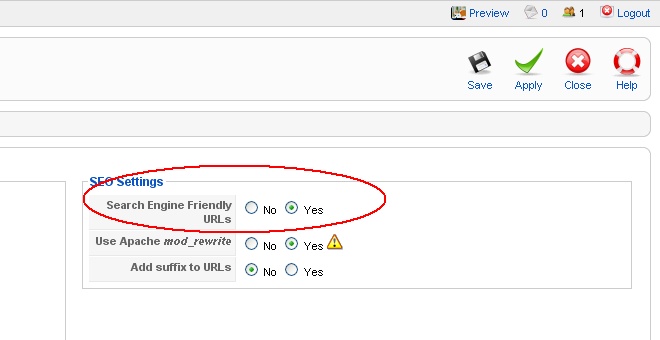
Default Joomla installation uses hard to read 'encrypted' URL's like http://yourdomain.com/index.php?option=com_content&task=view&id=17&Itemid=26. Humans and search engines can have trouble to understand, analyze and memorize this kind of links. Joomla gives option to use so called SEF-s or Search Engine Friendly URL's like: http://yourdomain.com/section/category/article_name.html. To enable this kind of links, follow these steps:
Step 1: Login as Administrator. Go to menu Site/Global Configuration. Click on 'YES' checkbox near Search Engine Friendly URLS'. Save settings.
Step 2: Enable mod_rewrite for Apache server. Some web host providers are enabling this by default, if so then after step 1, just check if SEF URL links are working. If not then perform this step: log with your ftp client (or web File Manager) on your server and navigate to the Joomla installation directory (probably /public_html). Default Joomla installation leaves file htaccess.txt in root directory. Rename this file to .htaccess (no extension). This will enable mod_rewrite ("RewriteEngine On" command at start of this file). It's recommended that this file is always in use (renamed to .htaccess), because it contains some other security restriction which will help keep your Joomla site more secure.
If you want to hide article from all visible menus or to move article to another menu and ensure that article is still reachable by old url path (to avoid 404 errors) you must create so called hidden menu module and copy article menu entriy to this hidden menu. In details:
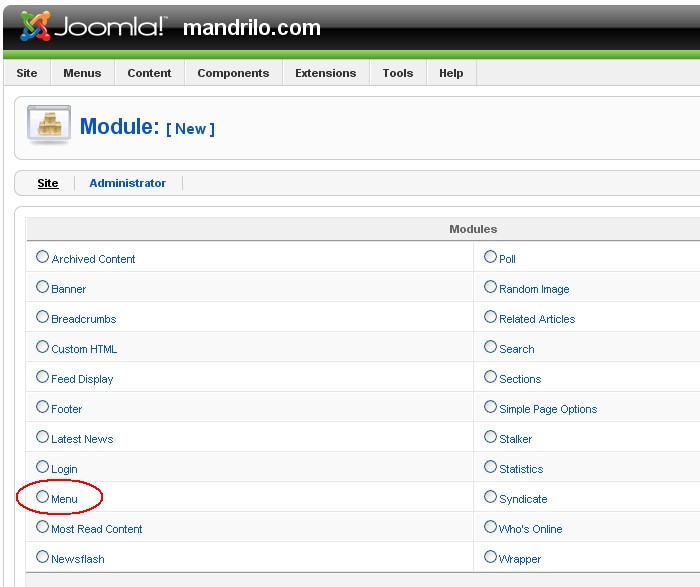
Step1: Let's assume that you have menu entry called "MyArticle" linked to article named "Lekcija1" with abosulute url path: http://mysite.com/lekcija1 and you wish to hide menu entry "MyArticle" but still want to make available article "Lekcija1" at url http://mysite.com/lekcija1. First step is to create so called hidden menu module. Go to Extensions/Module Manager and click on New to create new module. In following screen select module of 'Menu' type (see on picture):
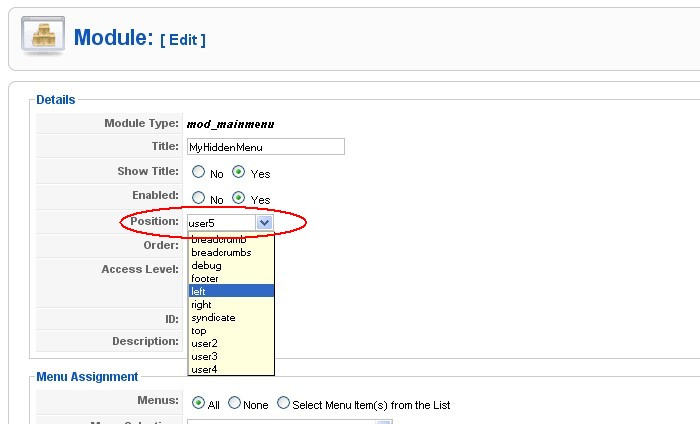
Step2: In next screen of the new module creation wizard set title of module. For this example module will be named "MyHiddenMenu". Most important thing is to set Position to non-existing module placeholder. List of available module placeholders is shown in drop down list. Manually write name of the new placeholder, let's say "user5". Placeholders are fixed places inside given template that will contain newly created modules (right and left menues, whos online module, newsflash, etc..). By setting module position to the non-existing placeholder module is automatically hidden although enabled. Warning: some templates can use placeholder named "user5" or "user6" so you can set the name in more unique fashion, let's say: "my_hidden_place"
Step3: In Menus/Menu Manager create new menu based on menu module "MyHiddenMenu". Module Title must be set as name of our hidden module="MyHiddenMenu". Rest of fields are not so important as menu will never be shown anywhere.
Step4: In Menus find "MyArticle" menu entry and copy it to the newly created menu "MyHiddenMenu". Afterwards you can delete "MyArticle" or unpublish it from old menu. That's it. Now old article should be reacheable by old url path without any menu entry visible. To create new 'hidden' article, just create article inside MyHiddenMenu menu.
There are many techniques how Joomla powered site (or any other site) can be hacked. Joomla is especially sensitive, as there is so many plugins and add-ons which contain unsecure code or even malicious code.
Most common hacking website techniques
1. XSS vulnerability:cross-site vulnerability is method of injecting malicious code through some input form: search form or entry field, comments entry field or any other input method. If script does not handle those attack's you have security issue.
2. SQL code injection: this is done by appending SQL code to the query string part of URL link. More on how to prevent SQL injection for MYSQL.
Bolded text is injected SQL code. This method can retrieve your username/password from the Joomla database or delete all records in the table.
Check for latest security 'holes' in Joomla on this site.
3. LFI injection: local file include: For example, Joomla 1.5.15 is vulnerable to this URL request: //index.php?option=com_content&view=frontpage<emid=../../../../../../../../../../../../../../../etc/passwd%00
This URL request fetches passwd file from Apache server. passwd file contains all user login account data of particular server.
How to protect your site from these attack's
Most important is to regularly update your Joomla installation to the latest release and every plugin you currently using.
Most powerful method to prevent these attacks is to use .htaccess file in your root directory:
1. Enable .htaccess: Joomla comes with htaccess.txt file, rename it to .htaccess
2.Check your Apache log, if you see attack (you can recognize attack by suspicious request), then block IP address or even whole IP address range. Add you blocked IP address on bottom of the .htaccess file. For example:
deny from 78.110.50.119 deny from 87.118.96.160 deny from 58.120.
Access is blocked for IP addresses 78.110.50.119, 87.118.96.160 and range of IP address from 58.120.0.0 to the 58.120.255.255
Note: crawler from yandex.ru (russian Google) is acting very suspicious, generating unnecessary network traffic and accessing pages with some odd parameters, e.g. /index.php?start=3. Form now on, yandex.ru is on my black list.
3. Write your own Conditions with RewriteCond command and put them before first RewriteCond statement in .htaccess file. See syntax of the RewriteCond statement and help on how to write RegExp.
Example on how to prevent LFI:
# block "../.". in query string... RewriteCond %{QUERY_STRING} .*[.][.]/[.][.].* [OR]
# block "http://" in query string... RewriteCond %{QUERY_STRING} .*http://.* [NC,OR]
These statements will not provide 100% safety of your site but if you implement basic precautions as stated in my previous article on how to secure Joomla site + this + regularly update then your site will be hard to crack.
Note1: this is only valid for Linux hosted Joomla site
Note2: these restrictions can prevent some 'normal' scripts from running, if so, comment line by line until you find cause (comment by #)
4.Disable mailto component: as of 1.5.15 Joomla version I've noticed that /index.php/component/mailto/ path is on top of the list of the accessed paths/documents. Further more I've received admin email stating that email can not be delivered. I can not be sure, but I think that mailto component has some security issue that allows hackers to use it for spamming emails. Note: if you disable mailto component then some features (internal Joomla messaging) will not work any more
How to disable mailto component:
1. Disable Email icon from all articles. By default, all articles are having 'Show Email Icon' = Use Global Settings. To change this global settings, go to Article Manager, select all articles, then click on 'Parameters' button on right upper corner and set 'Show Email Icon' = False.
2. Rename mailto component: go to your Joomla root directory and enter /component, rename com_mailto to something else, e.g. old_com_mailto
3. Reset admin email account settings in Site/Global Configuration/System/Mail Settings. Set mailer to the SMTP server. This will produce error if someone tries to misuse mailto component.
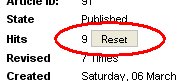
In joomla admin web interface go into the Article Manager, open the article and press 'Reset' button near Hit number:
To reset hit counter of all articles:
Step1: Enable access for remote computer to your MySQL server from your host admin interface (cPanel: go to Databases/Remote MySQL/Add Access Host, WebMin: go to Edit Databases/Remote Hosts). Enter your IP address (IP address of your local computer: find out your IP at www.whatismyip.com), or you can enter whole range of IP addresses (not recommended) using '%' wildcard (e.g. 93.143.%.%)
Step2: Download SqlYog and install on your computer, setup connection: host=your site domain (e.g. mydomain.com), user= mysql user (usually same as ftp and web admin username). Connect to your database.
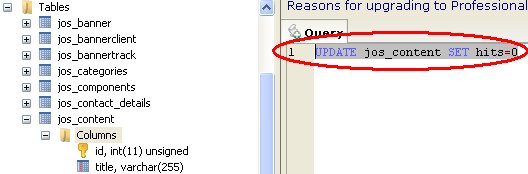
Step3: Select Joomla database (usually has suffix _joomla) and in query window copy/paste this:
UPDATE jos_content SET hits=0
use F9 to execute:
Note: if you wish to reset hit stats for one particular article use SQL:
UPDATE jos_content SET hits=0 WHERE id=article_id (find out article id inside Joomla admin manager)