
Joomla - How to backup or move site
Enable access for remote computer to your MySQL server from your host admin interface (cPanel: go to Databases/Remote MySQL/Add Access Host, WebMin: go to Edit Databases/Remote Hosts). Enter your IP address (IP address of your local computer: find out your IP at www.whatismyip.com), or you can enter whole range of IP addresses (not recommended) using '%' wildcard (e.g. 93.143.%.%)
Download SqlYog and install on your computer, setup connection: host=your site domain (e.g. mydomain.com), user= mysql user (usually same as ftp and web admin username). Connect to your database.

Select Joomla database (usually has suffix _joomla) and from context menu select Backup/Export/Backup as SQL dump, save database as SQL text file on your local computer, leave all default settings (Structure and Data option must be selected).
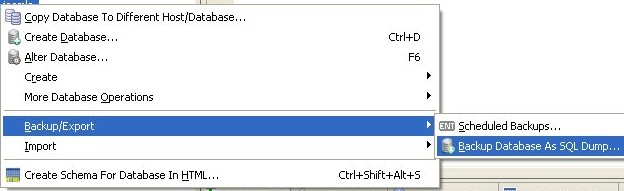
Using FTP client, login to your site and download /images directory and that's it, now you made your Joomla web site backup on your local computer. Some host web admin interfaces provides means to automate and schedule backups, but I think it's best to keep your website backup at your local computer just in case if hosting machine is destroyed by earthquake or nuclear attack.
To move your Joomla web site to another host, just install Joomla with all extensions as before and restore database and upload images. Probably it's best to use same version of Joomla and all extensions so it's good practice to keep in your local folder latest installation of Joomla and each extension/template that you installed on your Joomla site, so you can transfer them all to the new site.
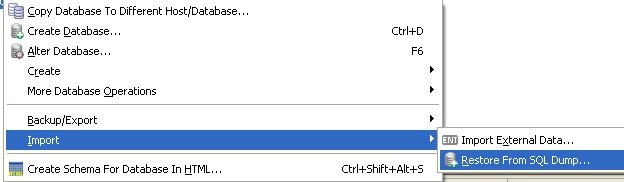
How to restore MySQL Joomla database from SqlYog: connect to the database, select joomla database from list, from context menu select Import/Restore From SQL Dump.
See list of all Joomla mini how to's from this site