To display count down time to the specific date use this script and in <body> element in onLoad() event call counter function with desired date, e.g. <body onload = "countdown(2010,03,10)"> will count down to 2010-03-10. Note: script will write inside <div> element with id='counter_idx'. It will only display hours, to include days comment dhour=dhour+dday*24; line and display dday variable:
//change the text below to reflect your own, var current="Today is the day!" var montharray=new Array("Jan","Feb","Mar","Apr","May","Jun","Jul","Aug","Sep","Oct","Nov","Dec")
function countdown(yr,m,d){ theyear=yr;themonth=m;theday=d var today=new Date() var todayy=today.getYear() if (todayy < 1000) todayy+=1900 var todaym=today.getMonth() var todayd=today.getDate() var todayh=today.getHours() var todaymin=today.getMinutes() var todaysec=today.getSeconds() var todaystring=montharray[todaym]+" "+todayd+", "+todayy+" "+todayh+":"+todaymin+":"+todaysec futurestring=montharray[m-1]+" "+d+", "+yr dd=Date.parse(futurestring)-Date.parse(todaystring) dday=Math.floor(dd/(60*60*1000*24)*1) dhour=Math.floor((dd%(60*60*1000*24))/(60*60*1000)*1) dhour=dhour+dday*24; dmin=Math.floor(((dd%(60*60*1000*24))%(60*60*1000))/(60*1000)*1) dsec=Math.floor((((dd%(60*60*1000*24))%(60*60*1000))%(60*1000))/1000*1)
//add leading 0: var strH=dhour; if (dhour<10) strH="0"+strH;
var strM=dmin; if (dmin<10) strM="0"+strM;
var strS=dsec; if (dsec<10) strS="0"+strS;
if(dday==0&&dhour==0&&dmin==0&&dsec==1) { document.getElementById('counter_idx').innerHTML=current; return } else { var textToDisplay='This page will be deleted in <span style="color:red;">'+strH+"h:"+strM+"m:"+strS+"s</span>"; document.getElementById('counter_idx').innerHTML=textToDisplay; }
In command line, execute it with following command line parameters: htpasswd.exe -c .htpasswd my_username, where my_username is username that will be used to authenticate
You will be prompted to enter and re-enter password. Password will be hashed by MD5 algorithm and save in the .htpasswd file
Upload .htpasswd file to the some folder outside Apache root folder, so it's not accessible from web
Using NotePad create .htaccess file that contains:
Where /home/my_dir/.htpasswd is the location of the .htpasswd (absolute file path) and my_username is same username used in .htpasswd file
Upload .htaccess file to the directory you wish to password protect and that's it, when accessing any file inside that directory, user will be prompted to enter username and password (once per session).
Note: this is very unsecure authentication method as password is sent as plain text via internet, so it is advisable to use other username and password then used for ftp/website administration.
Every directory in public_html root folder of Apache server can contain own .htaccess file which can restrict what client IP address is allowed to access content of the directory and all of it's subdirectories. .htaccess files provides more powerful options, see details on Wiki.
Restrict access to one IP address
With notepad or some other simple text editor create text file named .htaccess. To allow access only to the 156.146.78.89, add folowing lines:
order allow,deny allow from 156.146.78.89
and upload it to the directory on your Apache server that you wish to protect.
Explanation: IP access is allowed from 156.146.78.89 and denied for all others
Restrict access to few IP addresses
order allow,deny allow from 156.146.78.89 allow from 67.146.78.89 allow from 66.176.18.59
Explanation: access is allowed only to IP addresses: 156.146.78.89,67.146.78.89,66.176.18.59
Restrict access to few IP address ranges
order allow,deny allow from 156.146.78 allow from 67.146.
Explanation: access is allowed to IP address ranges: 156.146.78.0 - 156.146.78.255 and 67.146.0.0 - 67.146.255.255
Note: restrictions defined in .htaccess files are executed hierarchically from parent directory to the child directories if parent and sub directory both contains .htaccess file. E.g. when someone is accessing file /directory_one/sub2/index.html, if directory_one contains .htaccess file then it will be executed before .htaccess file inside sub2.
Windows Host
On Microsoft based Windows system you can restrict access to the website on two ways:
1. Through IIS Directory security (explained on Windows 2003 IIS)
Restrict access to whole website
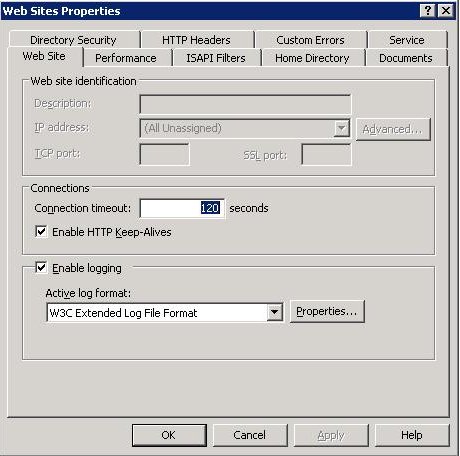
Go to Programs/Administrative Tools/Internet Information Server (IIS). Select Website, open context menu with right click, dialog should open:
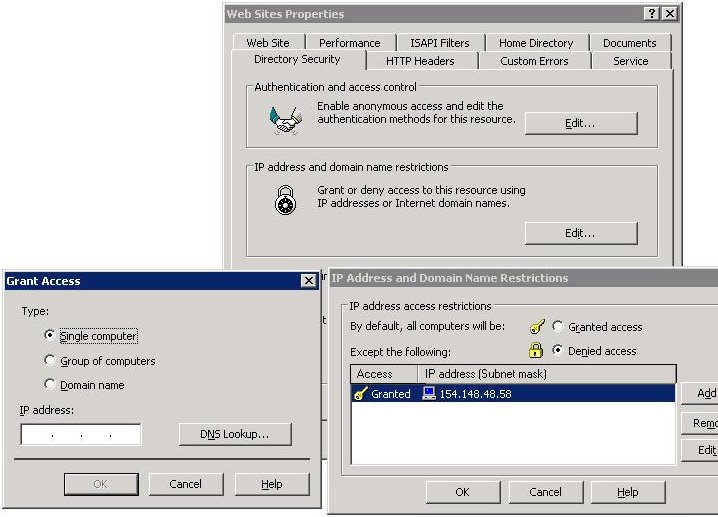
Go to Directory Security and under IP address and domain name restrictions section press EDIT:
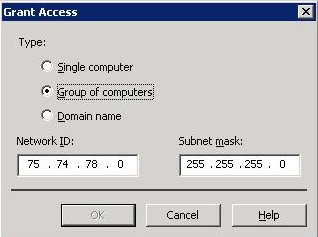
Check By default, all computers will be Denied access, except the following: add IP address that you wish to allow by clicking on Add. In example above access is allowed only to the IP address 154.148.48.58. Single computer, group of computers or domain name can be added to the list of allowed IP addresses. To add range of IP addresses, select Group of Computers and enter subnet mask:
In above example, IP address range from 75.74.78.0 to the 75.74.78.255 is allowed to access our IIS site.
Restrict access to the specific sub directories
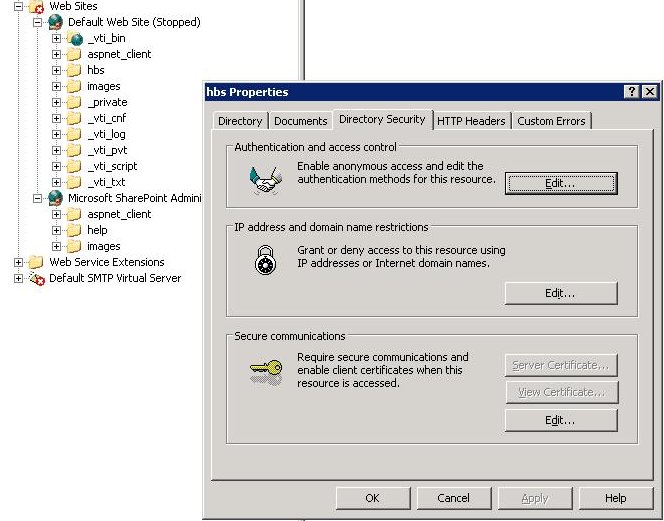
Open website from IIS, select directory on which you wish to restrict access, open context menu, go to Directory Security and repeat all steps as above.
2. Through Firewall settings
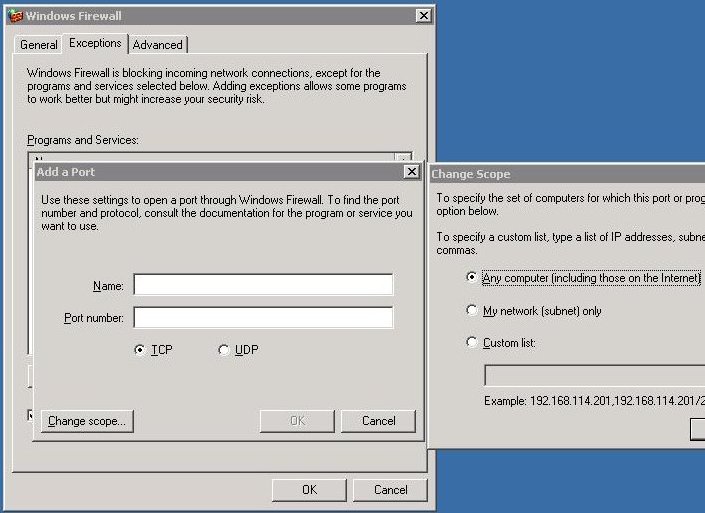
Open Firewall from Settings/Control Panel, go to Exceptions, add new exception with Add Port button for port 80 or edit existing one (probably already exists), click on change scope, and single IP address, multiple IP addresses or IP ranges (see picture below). Note: when restricting access through firewall, you can only restrict access to whole website that resides on specific port (not specific directory).